
A note loses most of its value the moment you have to leave your work to read it. Browser sidebar notes fix that: the Chrome side panel keeps a notes surface open right next to the page you are working in, so reusable text and quick notes stay visible instead of buried in another tab.
Why the side panel changes how notes work
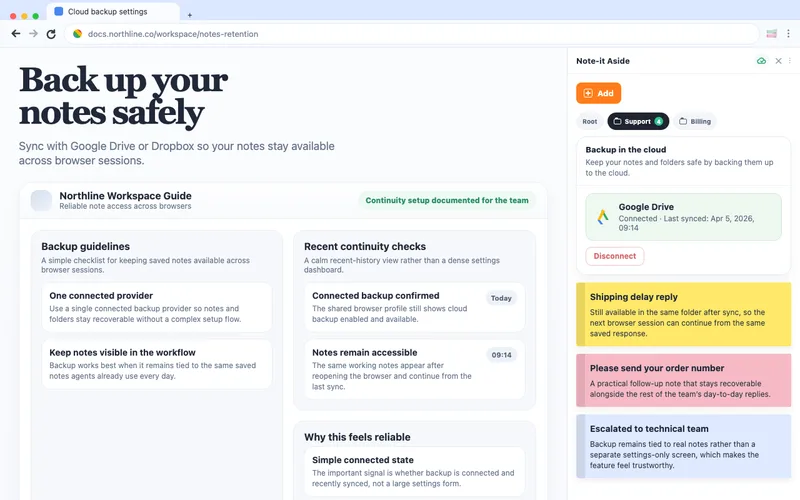
A normal notes app is a destination — you go to it. The Chrome side panel is different. It docks beside the current tab and stays open as you move around the web, so your notes are part of the workspace rather than another stop in it.
For people who write similar things all day, that difference matters. It removes the tab switch between reading something and responding to it. The four use cases below come from the same validated pattern: reusing text beside the page where the work actually happens.
Use case 1: Support replies beside the ticket
Support agents reuse the same wording constantly — shipping delays, refunds, verification requests, escalation notes. Kept in the side panel, those replies stay visible beside the ticket queue, so an agent can scan an approved version, copy it, and adapt the details without leaving the conversation. The support snippet workflow covers the folder setup.
Use case 2: Store-operations replies beside the admin
E-commerce teams answer the same order questions all day: where is my package, how do returns work, is this item back in stock. With the notes in the side panel, a store operator keeps the admin or order page open and pulls the right reply beside it — no separate help-desk layer required. More on this in the e-commerce admin workflow.
Use case 3: IT and helpdesk steps beside the queue
IT and helpdesk work is full of repeatable instructions — password resets, VPN setup, onboarding steps, outage updates. These are easy to get slightly wrong from memory. Kept as snippets in the side panel, the exact, current steps stay one glance from the ticket, so the answer is consistent no matter who is on the queue.
Use case 4: Sales follow-ups beside the CRM
Sales reps reuse outreach intros, follow-ups, and re-engagement messages across every deal. Kept beside the CRM, those lines make the next touch fast enough to actually happen on time. The sales follow-up workflow goes deeper on stage-based folders.
One pattern, many desks
Across all four, the snippet itself is ordinary. What makes it useful is where it sits. A simple example that works in any of these contexts:
Thanks for getting in touch. I have what I need and will follow up with a full update by [date]. If anything changes before then, I will let you know.
Saved once, visible beside the page, adapted in seconds.
Templates for these workflows
The template gallery is organized by exactly these roles. Browse the set that matches your desk — customer support, e-commerce, IT support, or sales — and save the first few snippets into a folder.
Proof from the Chrome Web Store
“I do a LOT of copy/pasting and it is SO convenient to have all my notes right there. No switching tabs, or opening apps on another page.”
— Public Chrome Web Store review, English
Where to go next
For role-specific setup, open the workflow page that fits your team: customer support, sales, or e-commerce.
Try it beside your next tab
Install Note-it Aside, open the side panel, and start with one folder for the use case closest to your work.