
If you find yourself typing the same sentences again and again — a standard reply, an address, a status update, a routine explanation — the problem is not your typing speed. It is that the text has nowhere to live. This guide shows a simple way to save text snippets in Chrome so they stay one click away while you work.
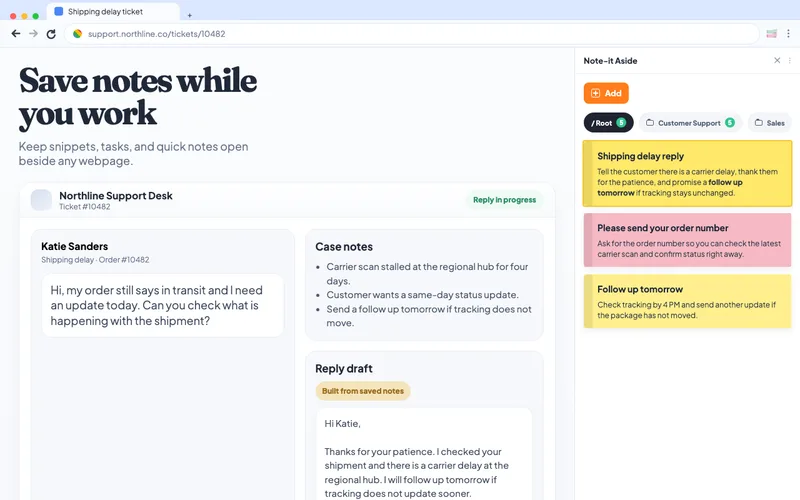
Why a scratch document is not enough
Most people start by keeping reusable text in a document, a notes app, or an email draft to themselves. It works for a while, then it does not:
- the document lives in another tab, so reusing text means switching away from your work
- there is no structure, so finding the right line means scrolling and scanning
- it is easy to end up with two or three competing copies of the same text
A browser extension solves the location problem. The snippets live in a side panel that opens next to whatever page you are on, so reusing text never costs you your place.
Step 1: Install Note-it Aside and open the side panel
Add Note-it Aside from the Chrome Web Store, then open the side panel from the toolbar. It docks to the side of the current tab and stays there while you browse — no separate window, no tab to lose track of.
Step 2: Save your first snippet
Type or paste the text you reuse most into a new note, and give it a short, recognizable title so you can spot it later. That is the whole step — there is no template language to learn and no signup wall.
A good first snippet is something small and frequent, for example:
Thanks for reaching out. I have received your message and will reply with a full update by [date].
Step 3: Organize snippets into folders
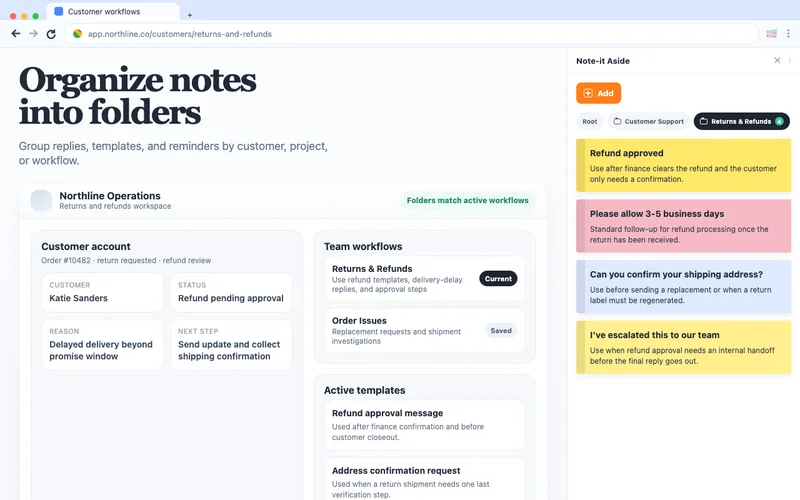
Once you have a handful of snippets, group them into folders by the kind of work they belong to — one folder for support replies, one for personal admin, one for project updates. Folders keep the side panel scannable as the collection grows, so the right snippet stays a glance away instead of a search.
Reusing a snippet
To reuse a snippet, open the side panel, find the note, and copy it. Because the panel sits beside your work, you never leave the page you are on. Adjust the details — a name, a date, an order number — and send.
What it feels like in daily use
“I do a LOT of copy/pasting and it is SO convenient to have all my notes right there. No switching tabs, or opening apps on another page.”
— Public Chrome Web Store review, English
Where this goes next
Once saving snippets becomes a habit, the next step is starting from text that is already written. The template gallery has ready-made snippets for support, sales, e-commerce, and IT work — the general-purpose templates are a good starting point. For more ways to use a notes panel beside your work, see browser sidebar notes use cases.
Try it in your next tab
Saving text snippets in Chrome takes about a minute to set up and saves a little time on every repeated message after that.